Members
The Members page is the church's member directory. It shows every member in your branch (or across all branches for Admins) with their status, contact details, and fellowship assignment.
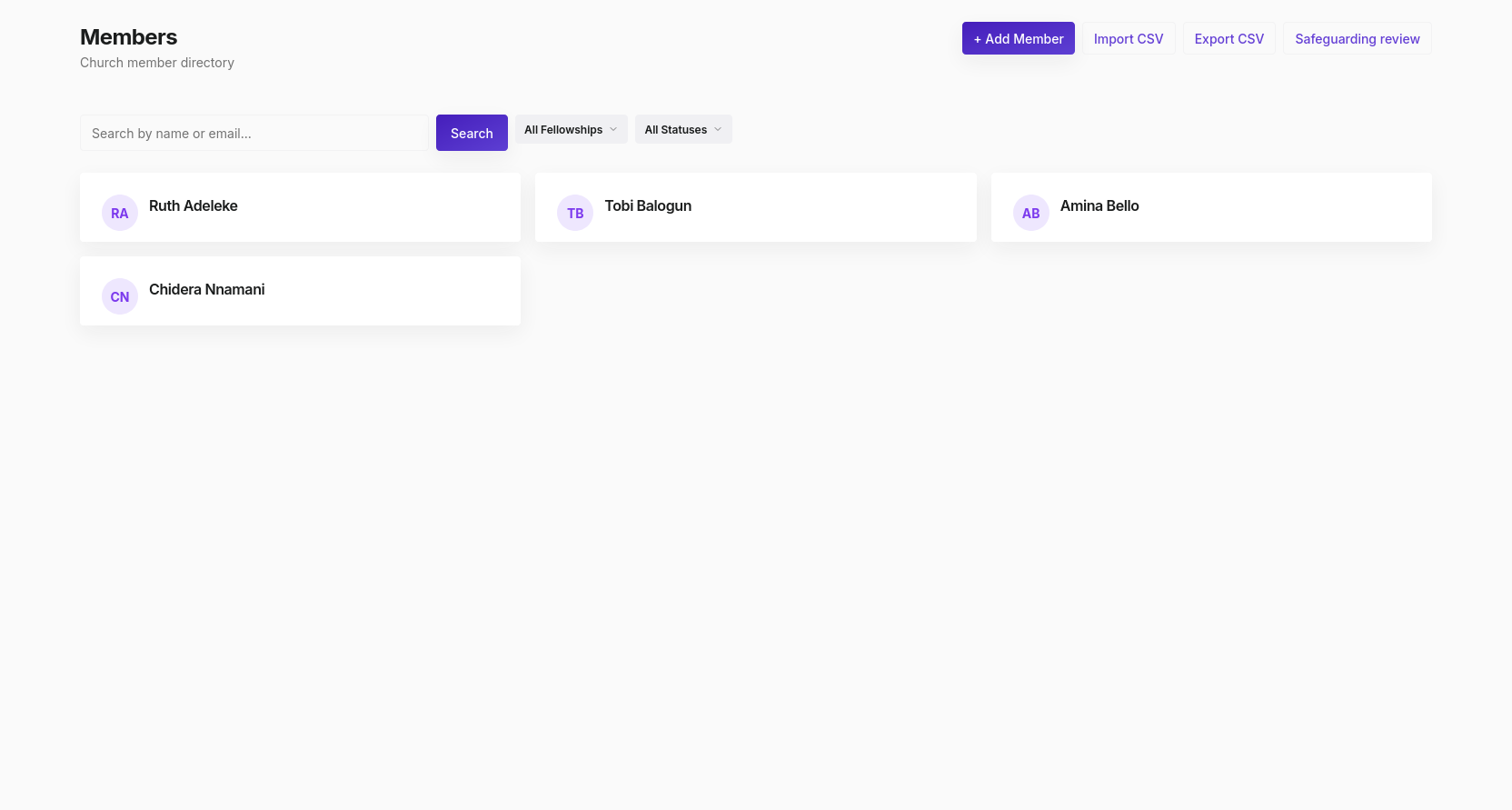
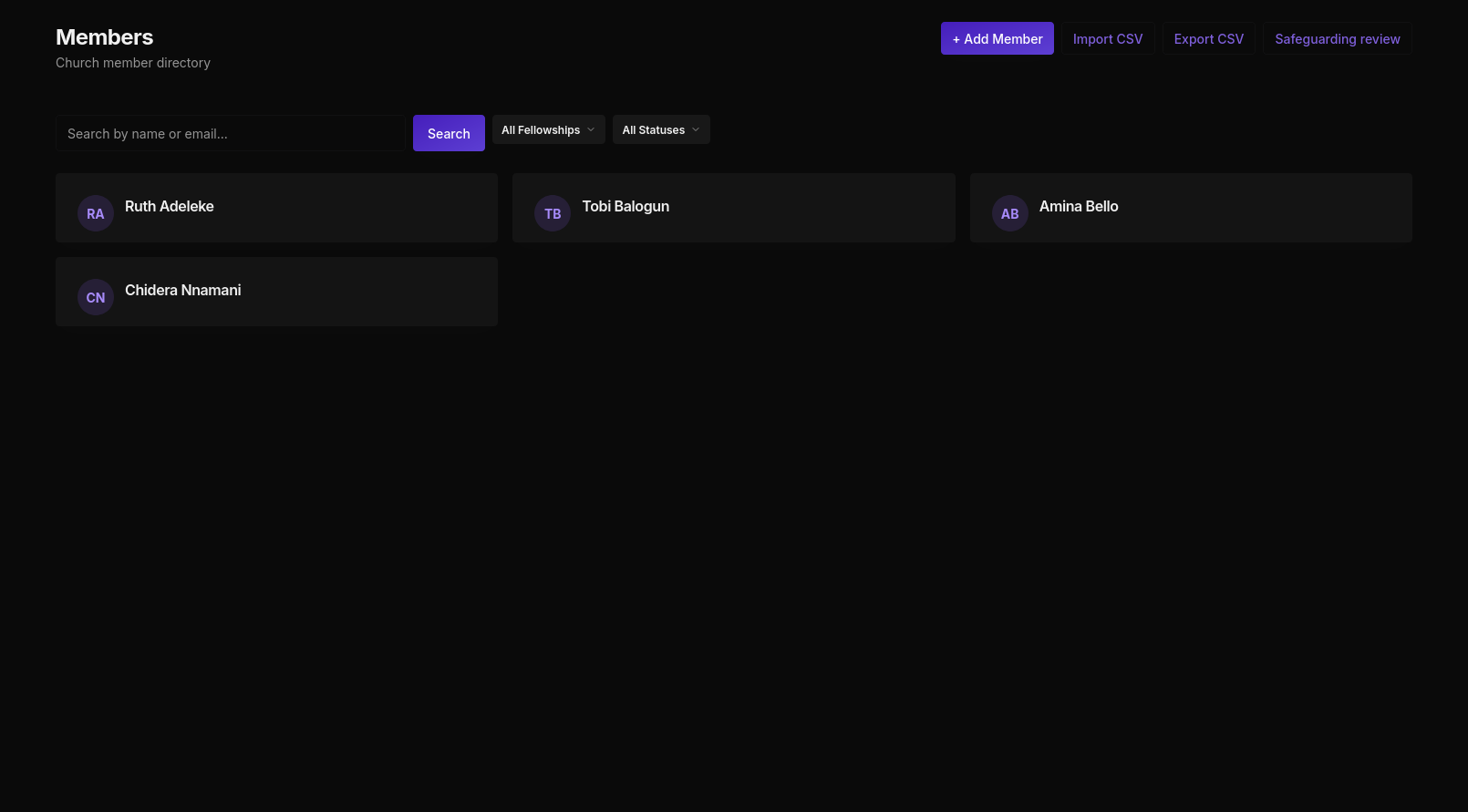
The member directory
Each member card shows:
- Name and avatar initials
- Home branch
- Email and phone
- System role (Member)
- Approval status badge (Approved, Pending)
- Deactivate button (Pastor and Admin only)
Searching and filtering
Use the search bar to find members by name or email. Filter using the dropdowns:
- All Fellowships: narrow to members of a specific fellowship
- Branch: filter by branch (Admin only)
- All Statuses: filter by Approved, Pending, or Inactive
Adding a member
Click + Add Member to create a member manually. Required fields:
| Field | Notes |
|---|---|
| First name, Last name | Required |
| Must be unique | |
| Phone | Recommended |
| Home branch | Required; sets their branch scope |
| Gender | Male or Female |
| Date of birth | Optional |
| Address | Optional |
| Emergency contact | Name, phone, and relationship |
Members added manually by a Pastor or Admin are automatically approved.
Self-registration
Members can register themselves via the login page. Self-registered members start with Pending status and must be approved before they get full access. Pending members can only view their own profile.
Approval Queue
The Approval Queue button in the Members page header shows all pending registrations. Click it to review and approve or reject each request. See Approvals for more detail.
Importing members via CSV
Click Import CSV to bulk-upload members. The CSV should include columns for first name, last name, email, phone, gender, date of birth, and home branch. The system validates each row before importing and shows a preview with any errors highlighted.
Exporting members
Click Export CSV to download the current filtered view as a CSV file. Useful for reporting or migrating data.
Safeguarding review
The Safeguarding review button opens a filtered view of members with safeguarding notes or flags. This is a Pastor and Admin feature.
Deactivating a member
Deactivating a member is a soft delete. Their profile, attendance history, follow-up notes, and group memberships are all preserved. They lose access to the system but their data remains intact for reporting.
Only Pastors and Admins can deactivate members.